
Tools
Give agents real capabilities through builtin and custom tools, then inspect and operate those capabilities from the CLI and impersonation loop.
Overview
Tools are how an agent takes action.
Without tools, an agent can still reason and reply. With tools, it can:
- search
- inspect systems
- call product logic
- trigger workflows
- operate through managed environments such as computer use
The key distinction is simple:
- knowledge changes what the agent can know
- tools change what the agent can do
The tool model
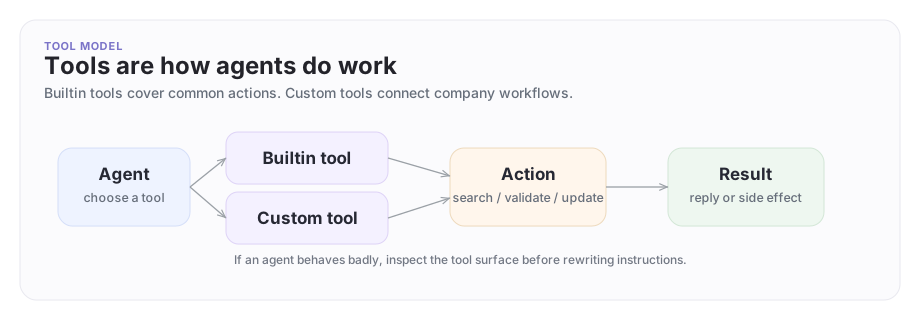
Tools sit between the agent's decision and the outside action. Some are built in. Others are custom and backed by your own workflows or logic.
A concrete example
Suppose Company A exposes a Platform Support Agent to help Company B troubleshoot a complex rollout.
That agent might need:
- a builtin search tool to search approved internal troubleshooting material
- a custom tool that runs a workflow to validate webhook retries
- computer use for a narrow admin task that cannot be expressed as one clean API call
That is the right way to think about tools: not as random plug-ins, but as the controlled action surface the agent actually works through.
Inspect the current tool set
Before you add a new tool, inspect the ones the agent already has:
archastro list agenttools --agent <agent_id>
archastro describe agenttool <tool_id>
This is the fastest way to answer:
- which tools are active?
- which are builtin versus custom?
- what handler or config is behind a custom tool?
This is also the review step that tells you whether a tool should be trusted in the first place.
Add a builtin tool
Builtin tools are the fastest path when the platform already provides the capability you need.
archastro create agenttool --agent <agent_id> \
  --kind builtin \
  --builtin-tool-key search \
  -k support-search
Then activate it:
archastro activate agenttool <tool_id>
Builtin tools are a good default because they keep the setup smaller and easier to review.
Add a custom tool
Use a custom tool when the agent needs a capability that is specific to your workflow or product.
For example, attach a workflow-backed validation tool:
archastro create agenttool --agent <agent_id> \
  --kind custom \
  -n "Validate webhook retries" \
  -d "Checks retry behavior for the acme-billing-webhooks integration" \
  -t workflow_graph \
  --config-id <workflow_config_id> \
  -k validate-webhook-retries
Then activate it:
archastro activate agenttool <tool_id>
That pattern is useful because the workflow stays visible and reviewable, while the agent gets a clean action surface.
Review the execution surface before activation
Treat a tool as a privileged capability, not as a casual plug-in.
Before you activate one, be clear on:
- what the tool actually does
- what workflow or config it points at
- what systems or data it can touch
- whether the action needs additional approval in your deployment
The docs here describe the operator workflow, not an automatic safety guarantee. The safest pattern is to inspect the tool definition, test it through impersonation or a sandbox, then activate it only when the scope is clear.
For custom tools, that means reviewing the exact workflow or config behind the tool before you trust it in a shared or production-facing flow.
Run the tool through impersonation
After the tool is attached, test it through the impersonation loop:
archastro impersonate start <agent_id>
archastro impersonate list tools
archastro impersonate run tool validate-webhook-retries --input '{"repository":"acme-billing-webhooks"}'
This is one of the best operational workflows in the platform:
- attach the tool
- impersonate the agent
- run the exact capability the live agent would use
That is how you debug the action surface without guessing.
One important limit is worth being explicit about: not every attached tool is directly runnable through impersonate run tool ....
- builtin tools only auto-run when they resolve to one concrete callable function
- script-backed custom tools can run directly
- workflow-graph custom tools stay attachable and reviewable, but they are not directly executable through the impersonation run path
That boundary is useful. It keeps the direct operator loop narrower than the full tool attachment model.
When you use a custom tool, two fields are worth checking first:
handler_typetells you what kind of execution surface sits behind the toolconfig_idtells you which workflow-backed definition the tool is pointing at
Use describe agenttool whenever you need that detail.
Update or pause a tool
Tools are live operational surfaces, so it is important to make state explicit.
archastro update agenttool <tool_id> --description "Updated description"
archastro pause agenttool <tool_id>
archastro activate agenttool <tool_id>
If a tool is behaving badly, pause it before chasing prompt changes. A lot of agent problems turn out to be tool problems.
Good tool posture
Good tool setups usually follow five rules:
- start with builtin tools if they already solve the job
- add custom tools only when the business need is real
- keep custom tools backed by visible workflows or narrowly scoped logic
- inspect tool state and handler details before debugging agent behavior
- test tools through impersonation or a sandbox before wider rollout
This is one of the main ways teams keep powerful agents understandable.
Where to go next
- Read Skills for reusable coding-agent behavior linked to agents.
- Read Impersonation for the best local testing loop.
- Read Computer Use when the capability needs a managed workstation instead of a simple tool call.
Need something clearer?
Tell us where this page still falls short.
If a step is confusing, a diagram is misleading, or a workflow needs a better example, send feedback directly and we will tighten it.