Automations
Run repeatable project-wide jobs on a schedule or when important events happen.
Overview
An automation is a job that belongs to your project, not to any one agent. It can run on a schedule (every morning at 8) or on an event (every time a thread is created), and it can call workflows, scripts, or other automations to do the actual work.
Reach for one when:
- the work needs to happen for the whole project, not for one agent identity
- you want to react to an event in a single, reviewable place rather than scattering routines across agents
- the job has a clock attached: daily digests, hourly retries, weekly backfills
- you want to coordinate across agents, users, teams, or data sources
Manage them from the CLI or Developer Portal.
A concrete example
Imagine you want a daily activity summary for the whole project.
That job does not belong to one support agent or one delivery agent. It belongs to the project itself.
An automation can:
- run every morning
- gather the activity data you care about
- call a workflow that formats the summary
- send the result to the right thread or destination
The main distinction:
- routines shape one agent's behavior
- automations run shared project-wide work
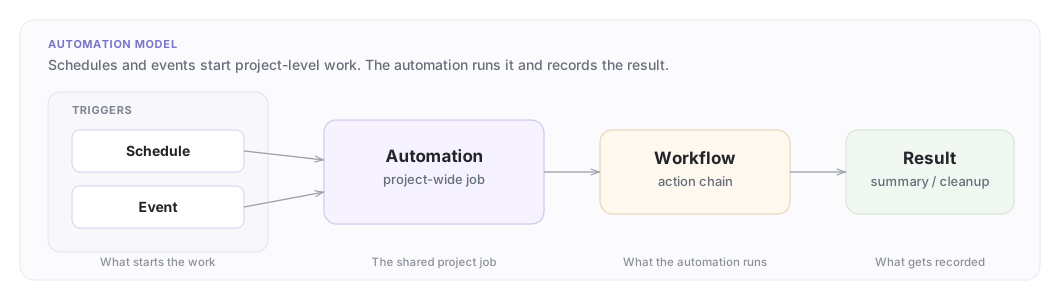
The project-wide job model
An automation sits above any one agent. It starts project work from a schedule or event and records the result.
Automation types
Trigger automations
Trigger automations run when a matching event happens.
Examples:
- someone joins a thread
- a message is created
- a connector is linked
- an incoming email arrives
These are useful when you want one shared reaction to an event without tying that reaction to a single agent.
Scheduled automations
Scheduled automations run on a timetable you define.
Examples:
- send a daily summary every morning
- run a cleanup job every night
- check for stuck work every hour
These are useful when you want a heartbeat, cleanup, report, audit, or periodic sync.
Available event types
Inspect the full event list from the CLI or Developer Portal. The most useful categories are:
Thread events
| Event | Description |
|---|---|
thread.created |
A new thread was created |
thread.message_added |
A message was added to a thread |
thread.member_joined |
A member joined a thread |
thread.member_left |
A member left a thread |
Connector events
| Event | Description |
|---|---|
connector.connected |
An OAuth connector was connected |
Context events
| Event | Description |
|---|---|
context.ingestion.succeeded |
A context ingestion job completed |
context.ingestion.failed |
A context ingestion job failed |
Email events
| Event | Description |
|---|---|
email.received |
An inbound email was received |
email.processed |
An email was processed |
Content-match (cue) triggers
Event filters normally match exact field values. A cue matches meaning instead: you describe the content in plain language, and the routine fires when a new thread message reads like that description.
routines:
  - name: billing-escalation
    handler_type: preset
    preset_name: do_task
    preset_config:
      instructions: "Summarize the customer's billing issue and notify #support."
    event_config:
      thread.message_added:
        filters:
          cue: "a customer is reporting a billing or payment problem"
          cue_threshold: 0.6
In the routine editor, this is the Content matches trigger.
Cue fields
| Field | Meaning | Default |
|---|---|---|
cue |
Plain-language description of the content to match (up to 500 characters) | required |
cue_threshold |
Similarity score (0.0–1.0) a message must reach to fire the routine | 0.6 |
cue_window_seconds |
How long to collect a burst of messages before evaluating them together | 5 |
cue_cooldown_seconds |
Minimum time between firings per thread | 300 |
How matching works
Cue evaluation happens asynchronously, after the routine's structural filters (like thread_id) already matched:
- New messages are compared to the cue by meaning, not keywords. "My card was charged twice" matches a billing cue even though no word overlaps.
- Messages arriving within the window are evaluated together, so a complaint spread over three quick messages fires once, not three times.
- After a firing, the cooldown suppresses re-firing in the same thread until it elapses.
Raise cue_threshold toward 0.8 if the routine fires too eagerly; lower it toward 0.5 if it misses phrasings you care about.
Cues are only accepted on events whose payload carries unstructured text. Thread messages are the supported source today.
CLI example
archastro create agentroutine --agent agi_033O8eWUv2SYzXO3MtTiwy \
  -n "Billing escalation" -t preset --preset-name do_task \
  --preset-instructions "Summarize the issue and notify #support" \
  --event-type thread.message_added \
  --event-cue "a customer is reporting a billing or payment problem" \
  --event-cue-threshold 0.6
Status states
Automations move through three simple states:
| Status | Behavior |
|---|---|
draft |
Saved, but not running yet |
running |
Active and ready to react |
paused |
Temporarily stopped |
That lifecycle is intentionally simple. You only need to know whether an automation is ready, active, or temporarily stopped.
Automation runs
Each time an automation runs, ArchAstro records what happened so you can review it later.
That run history is what makes automations operationally usable. When background work misbehaves, you need to see what ran and why instead of treating it like invisible magic.
Run statuses
| Status | Meaning |
|---|---|
pending |
Queued, awaiting execution |
running |
Work is in progress |
completed |
Finished successfully |
failed |
The run ended with an error |
cancelled |
The run was cancelled |
Viewing runs
archastro list automationruns --automation aut_abc123
archastro list automationruns --automation aut_abc123 --status failed
archastro describe automationrun atr_abc123
Automations vs. routines
Both automations and routines react to events, but they solve different problems:
| Automations | Routines | |
|---|---|---|
| Scope | Whole project | One agent |
| Best for | Shared jobs and scheduled work | Agent behavior |
| Typical example | Daily digest or event pipeline | Replying to new messages |
Use automations for shared background work. Use routines for how a specific agent behaves.
Another quick way to choose:
- if the work belongs to one named agent, start with a routine
- if the work belongs to the project, start with an automation
Agent routines with LLM execution (do_task)
The do_task preset is the most capable routine type. It triggers a full LLM execution session where the agent can think and act using all of its configured tools.
Use it when you want an agent to reason about a task on a schedule or in response to an event, not just run a deterministic script.
Example: weekly report routine
routines:
  - name: weekly-report
    description: Generate weekly activity summary
    handler_type: preset
    preset_name: do_task
    preset_config:
      instructions: |
        Review all activity from the past week.
        Summarize key findings and send a Slack message to #reports.
    schedule: "0 9 * * 1"
    event_type: schedule.cron
    status: active
Key fields
preset_name: do_task: tells the platform to run a full agent session with LLM reasoning.preset_config.instructions: the task the agent should perform. Write this like you would write a prompt.schedule: a cron expression for when to run (e.g."0 9 * * 1"means every Monday at 9 AM).- The agent gets access to all its configured tools during execution: search, knowledge, integrations, memory, and anything else you have wired up.
do_task vs. script routines
Script routines run deterministic code. They always do the same thing the same way.
do_task routines run the LLM with full tool access. The agent reasons about the instructions, decides what tools to call, and adapts to whatever it finds. Use do_task when the work requires judgment, not just execution.
Chain routines (multi-step, linear)
When a single handler isn't enough and a full workflow graph is overkill, use handler_type: chain: a linear sequence of preset / script / workflow_graph steps, each one's output addressable by name by the next. Steps share an input envelope so downstream steps can read upstream outputs:
routines:
  - name: classify-then-notify
    handler_type: chain
    event_type: agentroutine.invoked
    steps:
      - name: classify
        handler_type: preset
        preset_name: do_task
        preset_config:
          instructions: "Classify the inbound message."
      - name: log
        handler_type: script
        script: |
          println($.inputs.classify.output)
          $.inputs.classify.output
Scripts and workflows inside chain steps receive a wrapped input shape: {trigger: <event>, inputs: {<step_name>: <output>,...}}. They address the trigger event via $.trigger.<field> and upstream outputs via $.inputs.<step_name>, not $.<field> directly. Single-handler script routines are unaffected. See Scripts → Chain-step input shape for details.
Delivering an invoked routine's result
An agentroutine.invoked call can attach a typed delivery destination. The
platform persists this intent on the routine run and delivers the run's final
text result once. For a chain routine, intermediate step outputs are never
posted.
Use a reply destination when the result should follow the origin of an inbound message, including a mirrored Slack thread:
{
  "message": "Handle this request",
  "delivery": {"type": "reply", "message": "msg_..."}
}
Use a thread destination when there is no message to reply to:
{
  "message": "Post the weekly summary",
  "delivery": {"type": "thread", "thread": "thr_..."}
}
The equivalent CLI flags are --delivery-message msg_... and
--delivery-thread thr_.... They are mutually exclusive. Omit both (or pass
{"type":"none"} through the API/SDK) to keep the result on the routine run
without posting it to a conversation.
CLI commands
# List automations
archastro list automations
archastro list automations --type trigger

# Create
archastro create automation -n "Nightly Report" -t scheduled --schedule "0 0 * * *" --config cfg_abc123

# Manage state
archastro activate automation aut_abc123
archastro pause automation aut_abc123

# Update
archastro update automation aut_abc123 -n "Updated Name" --config cfg_def456

# Delete
archastro delete automation aut_abc123

# View runs
archastro list automationruns --automation aut_abc123
archastro describe automationrun atr_abc123
Design patterns
Event-driven onboarding
Trigger shared onboarding work when a new user joins a thread:
archastro create automation -n "Onboarding Flow" \
 -t trigger \
 --trigger thread.member_joined \
 --config cfg_onboarding_workflow
Scheduled reporting
Run a daily job that gathers activity and posts a summary:
archastro create automation -n "Daily Activity Report" \
 -t scheduled \
 --schedule "0 9 * * *" \
 --config cfg_daily_activity
Context ingestion monitoring
React to ingestion failures so a team can retry or investigate:
archastro create automation -n "Ingestion Failure Alert" \
 -t trigger \
 --trigger context.ingestion.failed \
 --config cfg_ingestion_alert
Need something clearer?
Tell us where this page still falls short.
If a step is confusing, a diagram is misleading, or a workflow needs a better example, send feedback directly and we will tighten it.